
Software Installation
Below are the steps to install the MEE4D software. The installation process is the same whether you are installing a trial copy or have a license.
The trial copy is fully functioning and will run for one month from the time of the installation.
If you purchased the software for a specific time period, you will have the opportunity to add your license.
System Requirements
- Windows PC
- Windows 7 or above
- 8GB of memory or more
- Screen resolution of 1920×1080

Step 2

UNZip the file you downloaded with your favorite UNZip program.
Step 3
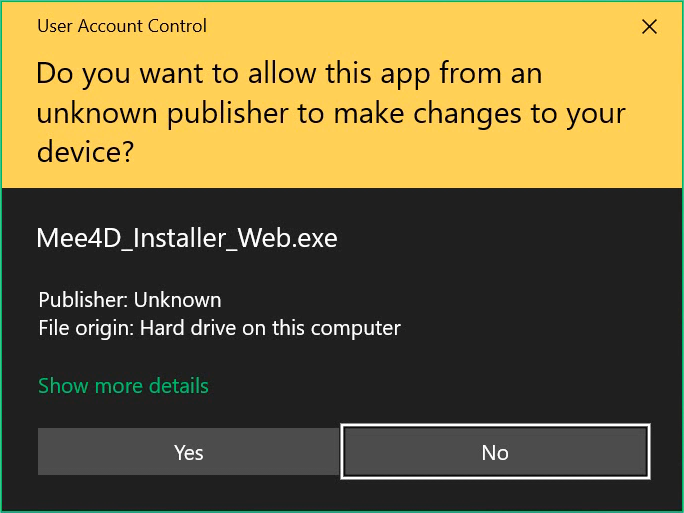
Run the extracted Mee4D_Installer_Web.exe file. You will most likely see the above message. Click on YES and the process will continue.
Step 4
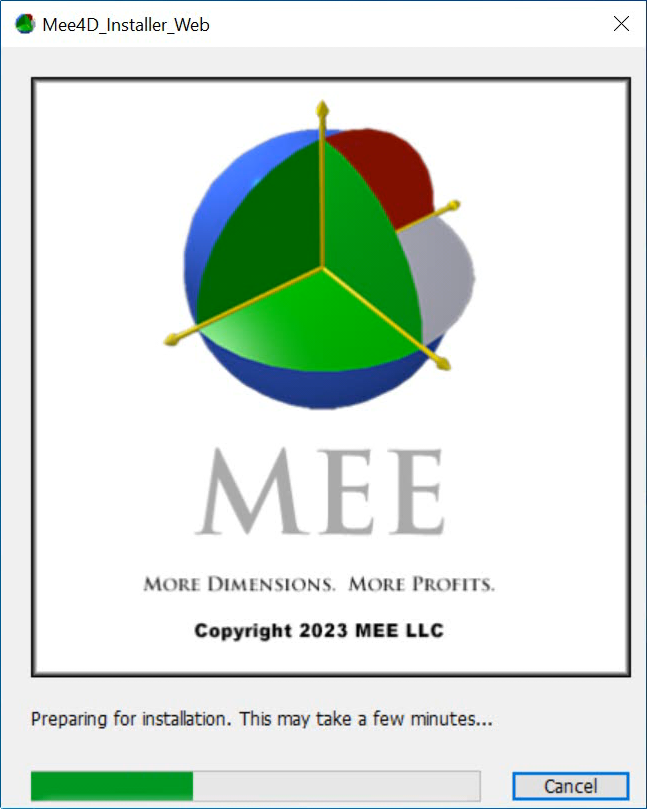
This screen will come up. Please wait for it to complete the process.
Step 5
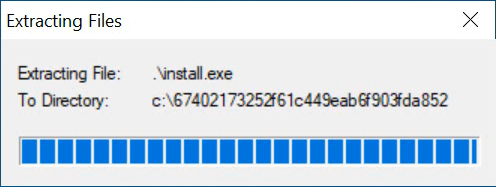
You will see the extraction process from the install program come up. It may flash by so fast that you will miss it.
Step 6
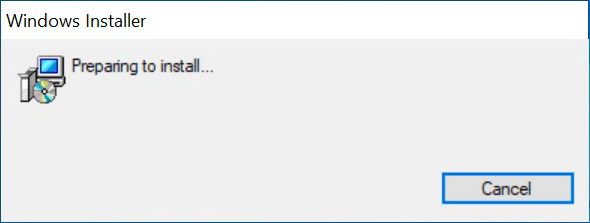
Just another window to keep you entertained while the process continues.
Step 7
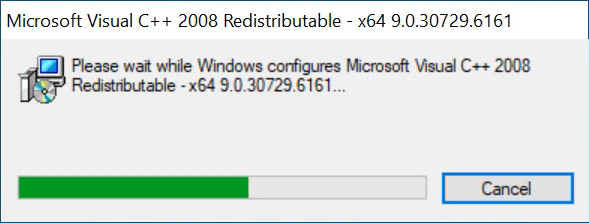
Unless you have MS Visual C++ 2008 already installed, you will see this come up.
Step 8
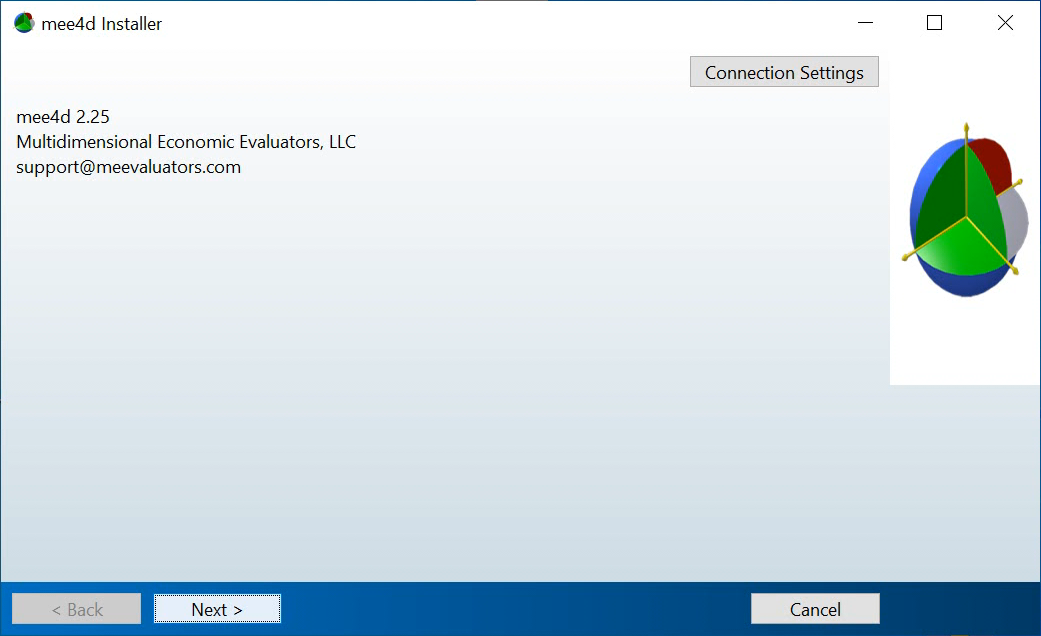
The installation process will download the software from the server. Just click NEXT.
Step 9
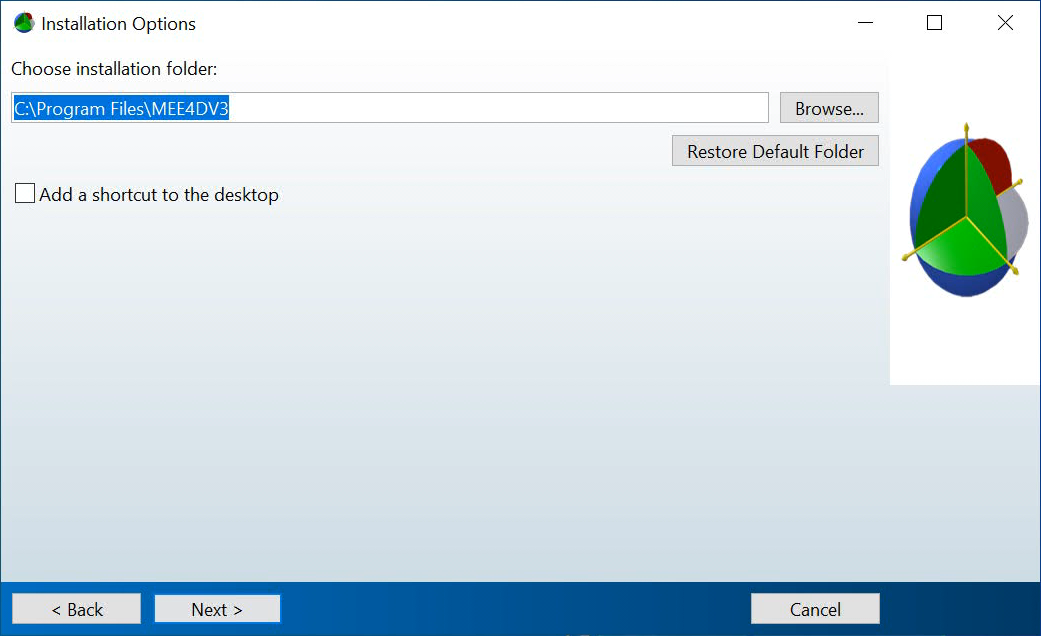
You now have the option to select a special installation folder or just click NEXT to accept the default location.
Step 10
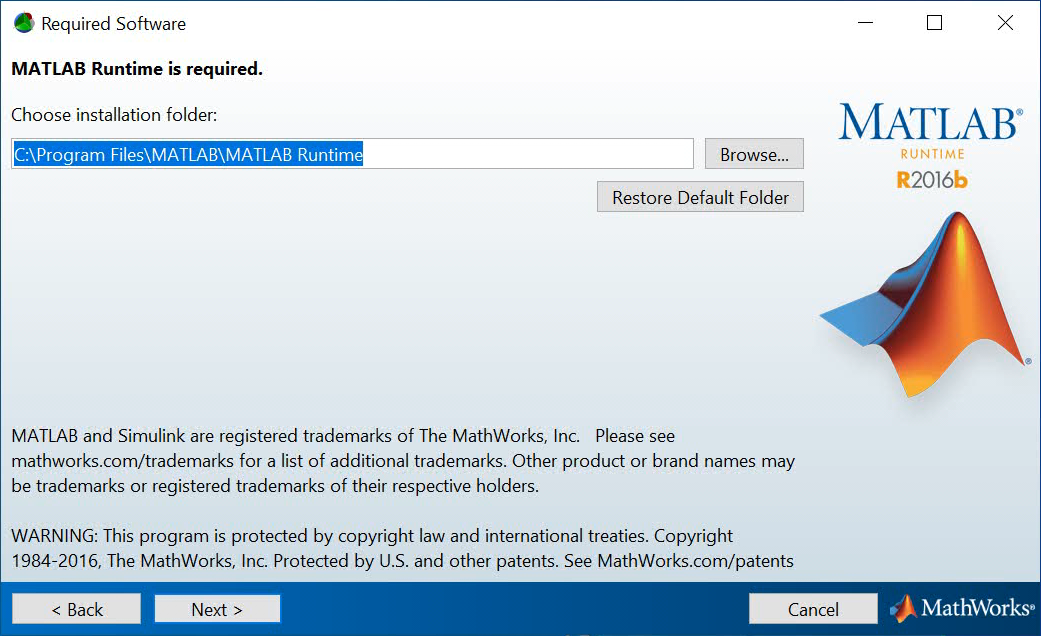
The MATLAB Runtime program files are required. Click NEXT to install into the default location
Step 11
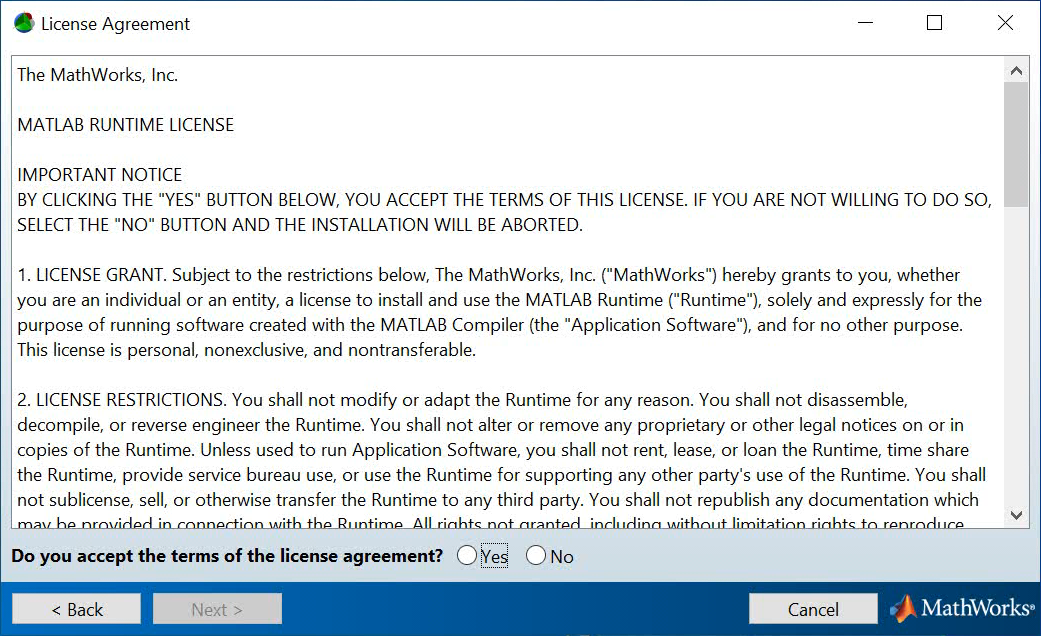
It’s time to agree to the usual fine print that nobody every reads. Of course you are welcome to entertain yourself. When done reading, click the circle next to YES and click NEXT.
Step 12
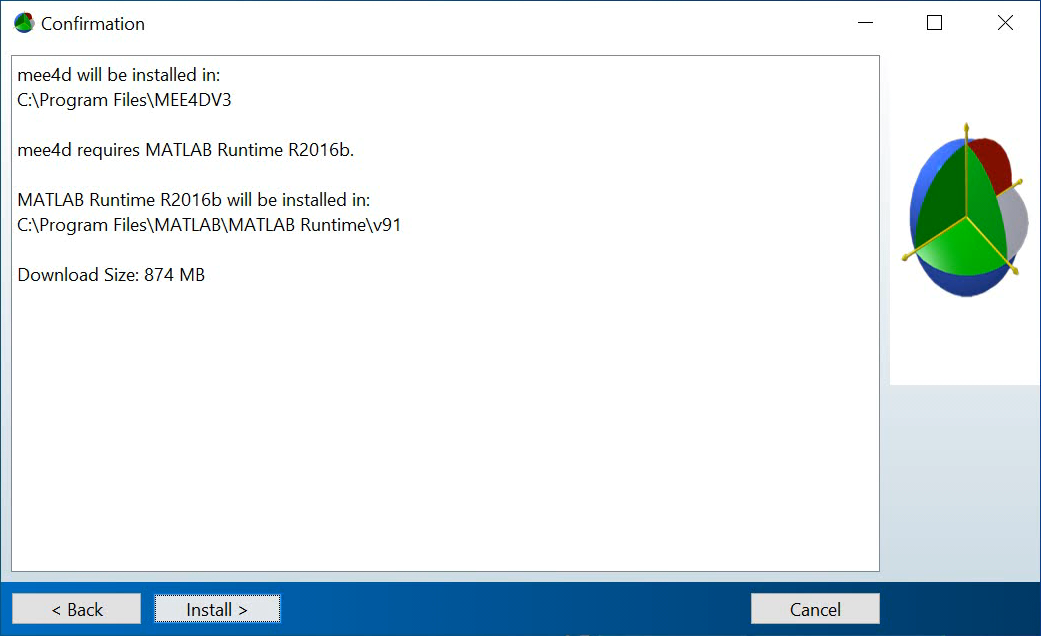
Now confirm the installation by hitting the INSTALL button.
Step 13

The installation process will now download additional pieces needed for the program.
Step 14
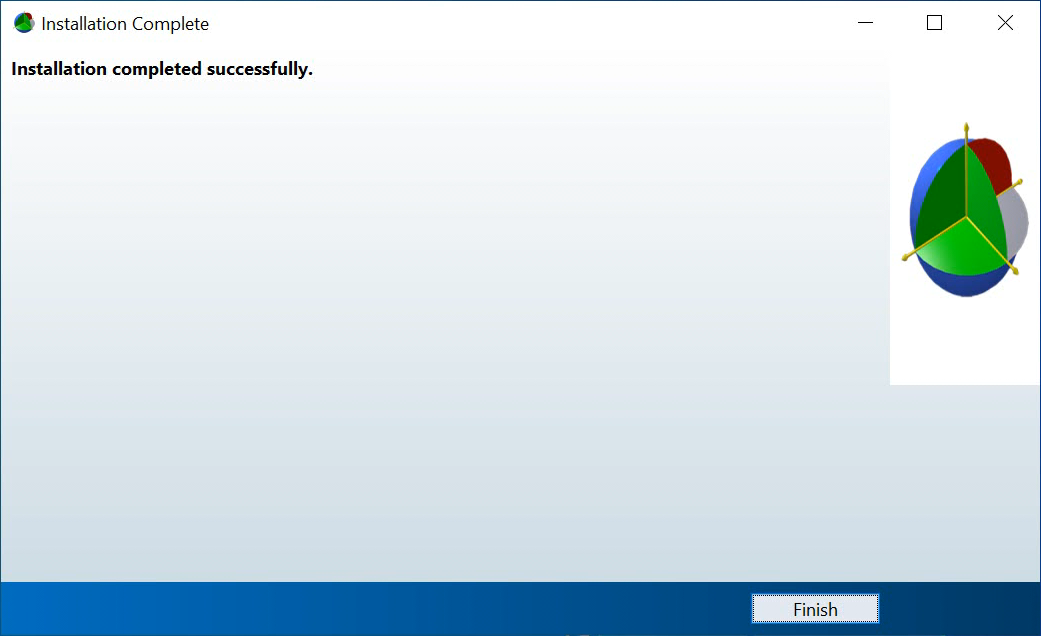
That’s all there is to the installation. Just click FINISH to end the installation program.
Step 15
That’s all there is to the installation. Just click FINISH to end the installation program.
Step 16
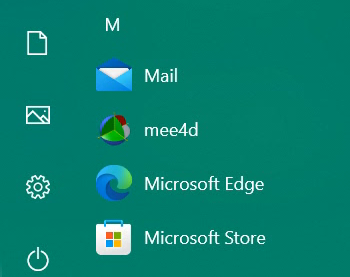
Now you will find the program listed in your start menu of programs as mee4d.
Step 17

Please allow some time for the program to come up. It is normal to see nothing happening. The program is sophisticated and it has to load several modules before the program is fully loaded.
Step 18

You will see this image come up.
Step 19
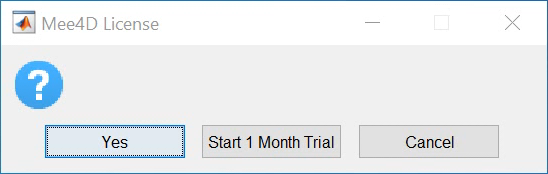
You now have the choice to start a 1 month free trial or enter a license you received when you purchased the program.
Step 20

Here is the final loaded program. Refer to operational training videos on how to use the program.
Thank you for installing MEE4D.